
The Tyms accounting software allows users to manage multiple businesses and branches from a single account, providing a comprehensive and streamlined financial management experience.
A business is a separate financial entity with its own set of accounts, invoices, and transactions, with different subscription plans.
A branch is a subsidiary location of a business, sharing the same accounts and financial data. There can be various branches under a particular business.
This feature enables users to switch between businesses and branches seamlessly, making it easy to manage diverse financial portfolios. In this section, we will explore how to switch between businesses and branches on Tyms, building on the previous section's introduction to the navigation menu.
Here are the steps involved in switching between branches on Tyms:
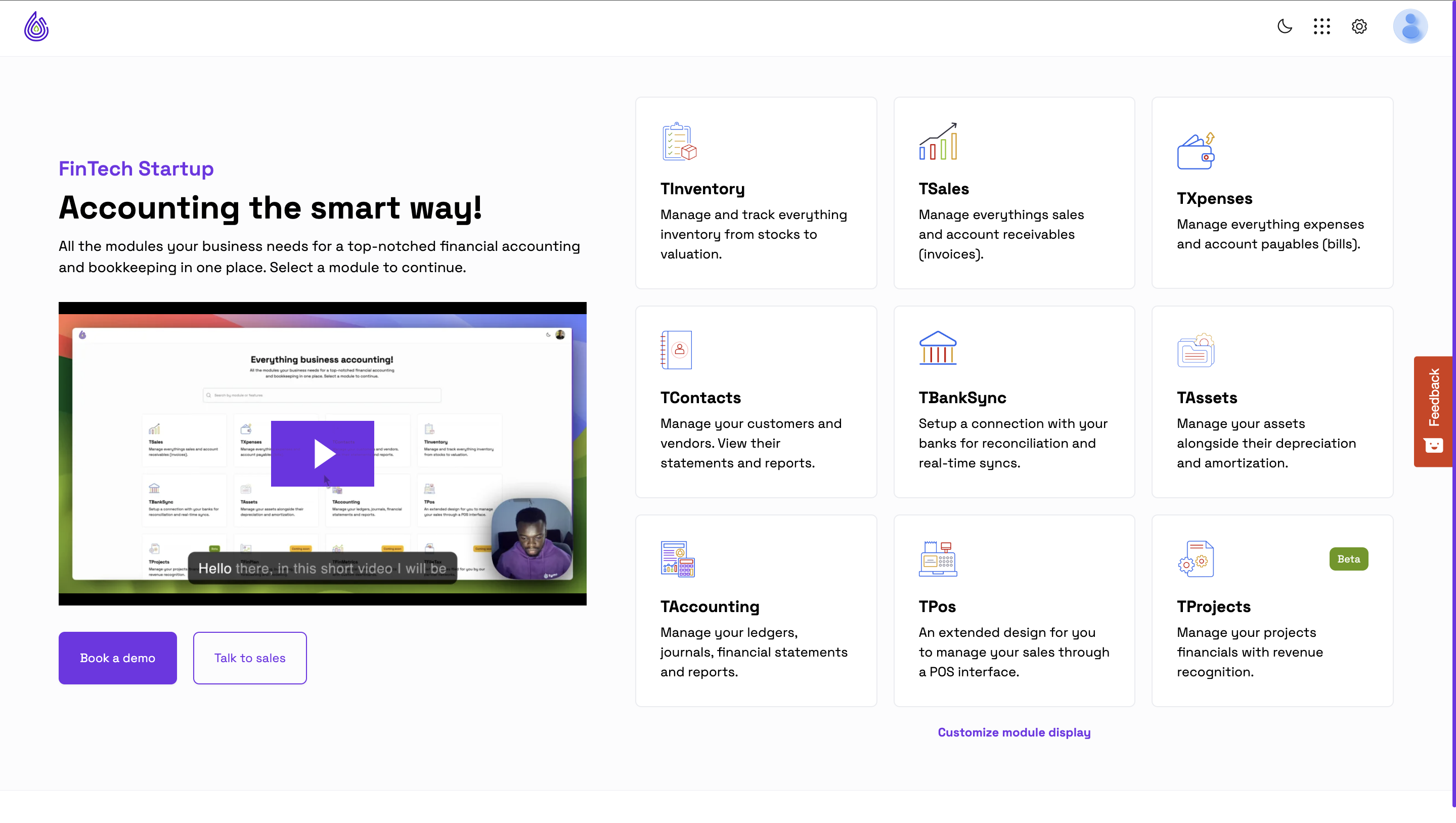
1. Log in to your Tyms account, and select any of the modules from the modules page.
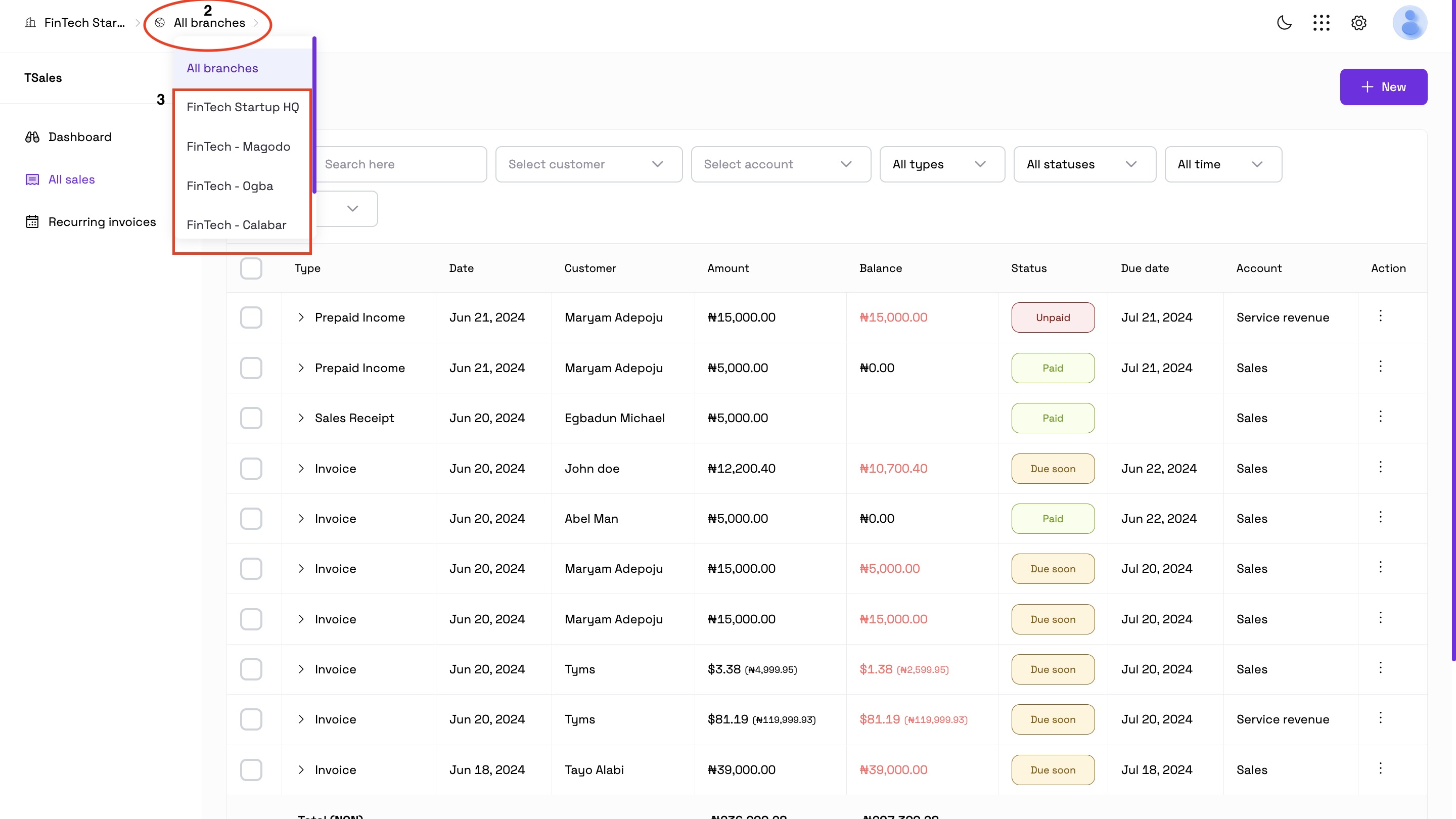
2. Click on the second option by the top left hand corner of the application to view the list of branches.
3. Select the branch you want to switch to.
Here are the steps involved in switching between businesses on Tyms:
1. Log in to your Tyms account, and select any of the modules from the modules page.

2. Click on the first business name displayed at the top left hand corner of the application to view the list of businesses.
3. Select the business you want to switch to.
Once this is done, Tyms will load the selected business or branch's dashboard.
FAQs:
1. Can I have multiple businesses and branches on Tyms?
Yes, Tyms supports multiple businesses and branches.
2. How do I create a new business or branch?
Go to the settings page and select the branch menu, enter the details of the branch and it will be created.
3. How do I create a new business?
Go to the profile icon at the top right hand corner of the screen, switch company, and click on “Create Business”.
4. Can I merge businesses or branches on Tyms?
No, merging businesses or branches is not currently supported on Tyms, but branches can be compared side by side on all available financial statements.
By following these steps and understanding the related questions, you can easily switch between businesses and branches on Tyms, streamlining your financial management process.
How to Add a Fixed Asset Manually on Tyms
Última actualización por Tyms 1 year ago
Setting accounts opening balance on Tyms accounting software
Última actualización por Ibrahim Adepoju 2 years ago
Creating and managing chart of accounts on Tyms
Última actualización por Praise Arannilewa 2 years ago
How to Generate and use Balance Sheet in Tyms
Última actualización por Tyms 1 year ago
How to Access Point of Sales (POS) as a Team Member in Tyms
Última actualización por Tyms 1 year ago
Overview of Tyms Inventory Management
Última actualización por Tyms 7 months ago
Managing invoice payments on Tyms
Última actualización por Tyms 1 year ago
Overview of Tyms revenue management
Última actualización por Tyms 1 year ago